Expedia Ads User Guide: Campaigns & Billing
Modified on: Fri, 13 Nov, 2026 at 4:32 PM
TABLE OF CONTENTS
Introduction
This user guide is for hotels and chains that run Expedia Travel Ads campaigns. Expedia Ads lets you manage everything in one place: choose hotels, markets and booking paths, set a bid strategy and budget, and track performance. All the following tasks will be completed in OTA Ads V2 and Billing.
- Model: Prepay. Every Expedia campaign spends from a Fund that you top up in advance.
- Funding: A campaign delivers only while its Fund is Enabled and has enough Available balance. When the balance runs low, the campaign is held back automatically and resumes after a top-up.
- Control: You decide targeting, bidding, budget and schedule, and can pause, edit or archive a campaign at any time.
Key Benefits
- One setup, many campaigns: Create one campaign, or split one definition into a campaign per hotel or per market.
- Flexible bidding: Choose DerbySoft ROAS (AI-optimized), Expedia ROAS (Expedia-optimized), Max Clicks, Max Room Nights or Manual CPC.
- Spend protection: Prepay Funds and daily or monthly budgets stop campaigns from overspending.
- Automatic resume: Campaigns paused for lack of funds restart on their own once the Fund is topped up; campaigns you paused stay paused.
- Transparent money trail: Every deposit, spend and transfer is recorded in the Ledger and can be filtered and exported.
- Save your work: Unfinished campaigns can be saved as drafts and resumed later.
Create and Manage Campaigns
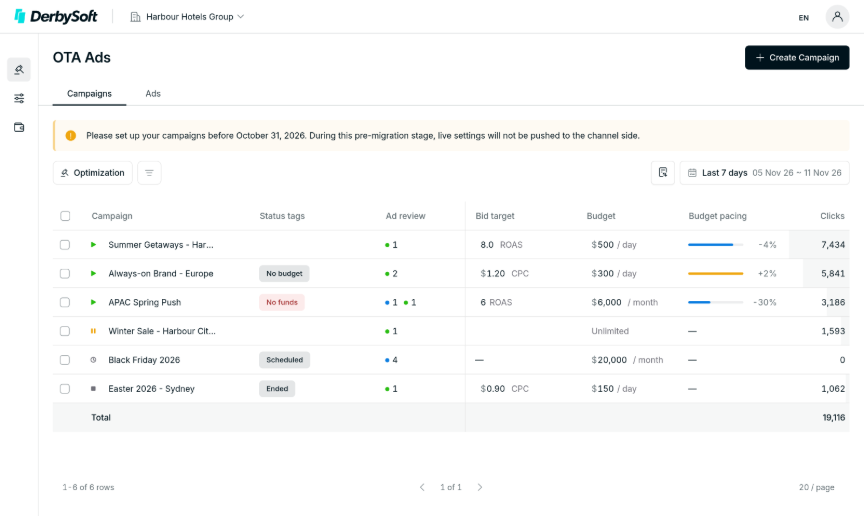
The Campaigns tab on the OTA Ads V2 page lists every Expedia campaign in your account, with its status, budget, bid strategy, Fund and core metrics. From here you create, find and manage campaigns.
1. Find the Campaign List
Click OTA Ads V2 in the left side menu to open the campaign list.
- Use the filter bar to narrow the list by status, Status tags, channel, bid strategy, hotel, market, tags or Ad review status. You can save a filter set as a view to reuse it.
- Use Configure columns to add or remove columns, and Export to download the list.
Notes:
If you cannot see the OTA Ads V2 menu, or a campaign type shows Needs connection, please contact your account manager to confirm Expedia is set up for your hotels.
2. Create a Campaign
Click Create Campaign and complete each step below. You can move on only after the current step is valid.
- Campaign type: Select Expedia Travel Ads. Other channels show as Coming soon. The channel cannot be changed later.
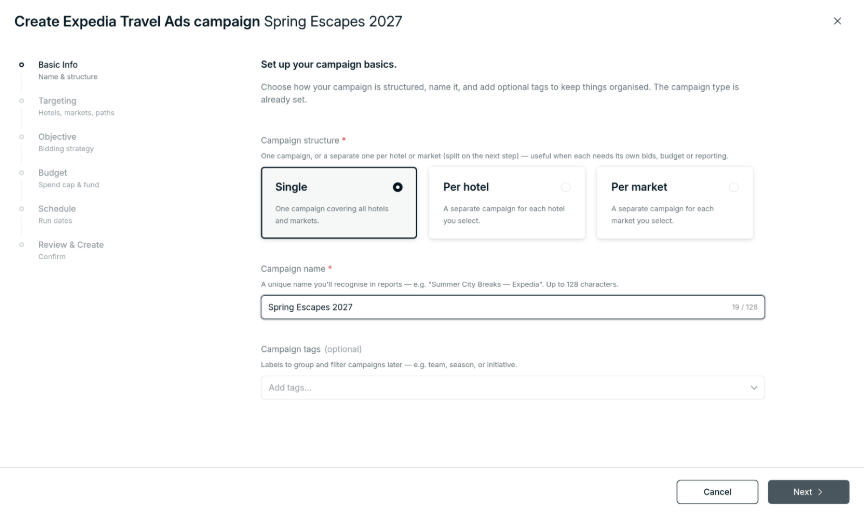
- Basic Info: Choose a structure, then enter a name (up to 128 characters, unique in your account). Tags are optional.
- Single: one campaign covering everything you select.
- Per hotel / Per market: one campaign for each selected hotel or market. The name becomes a template, for example Summer - {Hotel name}.
- Targeting: Select at least one hotel, one market and one booking path. Optionally add excluded check-in dates (one range, under 30 days) for when ads should not show.
- Objective: Choose a bid strategy and fill in its target (see the table below).
- Budget: Choose Unlimited or Set Budget, and select a Fund(required).
- Daily budget: 5 to 1,000,000.
- Monthly budget: 20 to 1,000,000.
- Whole amounts only.
- Schedule: Choose Always on (optional start date; starts today if empty) or Specific dates (start date required, end date optional).
- Review & Create: Check the summary, including the number of campaigns and their names for a split, then submit.
Bid strategy | What you set | Allowed range |
DerbySoft ROAS | Target ROAS; optional Max bid and Learning budget | ROAS 0.1–100; Max bid $0.50–$10; Learning budget $20–$100,000 |
Expedia ROAS | Target ROAS | 1–20, whole number |
Max Clicks | Market tier | Market Tracker, Market Player or Market Leader |
Max Room Nights | Nothing | Bidding is automatic |
Manual CPC | Cost per click | $0.50–$10 |
Notes:
• Leaving the wizard part-way lets you save a draft. To resume one, click Create Campaign and choose Continue a draft. Drafts do not appear in the campaign list or reports.
• Each new campaign gets one photo-only base ad for every selected hotel.
• A campaign with a future start date begins as Scheduled and starts automatically.
3. Understand campaign status
Status | What it means |
Active | Eligible to deliver. Check Status tags if it is not spending. |
Scheduled | Waiting for its start date. |
Paused | Paused by a user, or suspended by Expedia. |
Ended | The end date has passed. |
Archived | Stored for history; no longer delivers. |
Status tags explain why a campaign is not delivering as set up. Hover a tag for the reason.
- No funds: the Fund's Available balance is too low.
- No fund assigned / Fund paused / Fund archived: the Fund cannot pay for spend.
- No budget: the daily or monthly budget is used up. Delivery resumes at the next budget period.
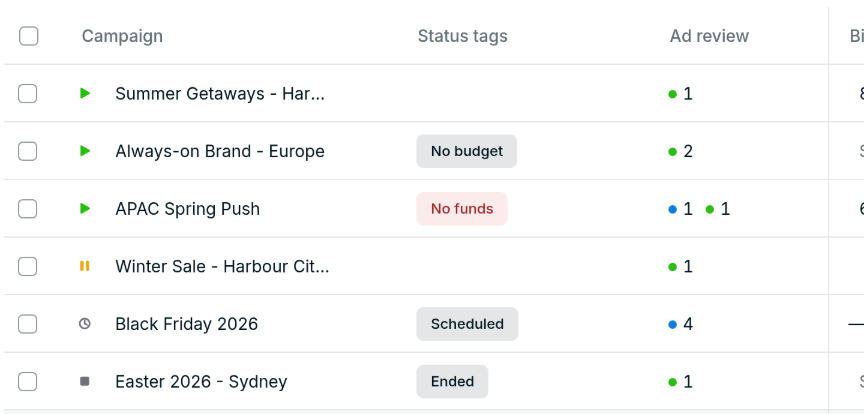
Notes: A campaign held back for No funds or No budget still shows as Active, because it resumes on its own once the cause clears. A campaign you pause yourself stays paused, even after a top-up.
4. Understand campaign status
- Pause or enable: click the status control on the row.
- Edit inline: change bid target or budget directly in the row.
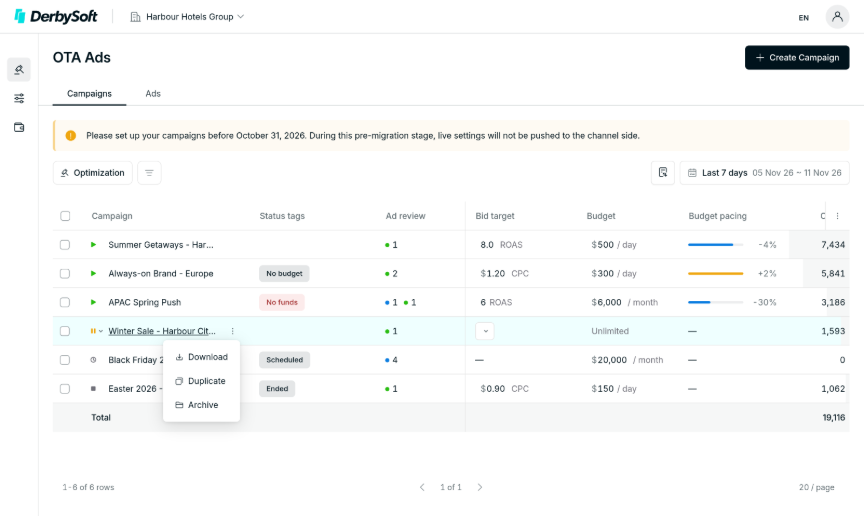
- Row menu (hover the campaign name): Duplicate, Download, Archive and Restore.
- Duplicate opens the copy's Settings so you can adjust it. The source campaign must have an Enabled Fund.
- Archive is allowed only for Paused or Ended campaigns, so pause an Active campaign first. An Undo link appears after archiving. Restore brings the campaign back as Paused.
- Bulk edit: download the bulk-edit template, update it in a spreadsheet and upload it. The template covers every campaign matching your current filter. Review the changes before applying.
Notes: The bulk-edit sheet has no version check. If someone changed a campaign after you downloaded the sheet, uploading an old value overwrites their change. Download a fresh sheet before each edit.
5. Campaign detail
Click a campaign name to open its detail page. Each tab has its own link you can bookmark.
Tab | What you can do |
Hotels | See targeted hotels with metrics, ad counts and placement counts. Click a hotel to see its placements. |
Placement | See each hotel, market and booking path combination with its bids and metrics. Base bid is editable only under Manual CPC ($0.50–$10). |
Multipliers | Review or adjust bid multipliers by device, distance, days to arrival, loyalty, length of stay, day of week, travel window and travel party. |
Ads | Create, review and manage the campaign's ads. |
Settings | Edit Basics, Targeting, Objective, Budget and Funding, and Schedule one section at a time. |
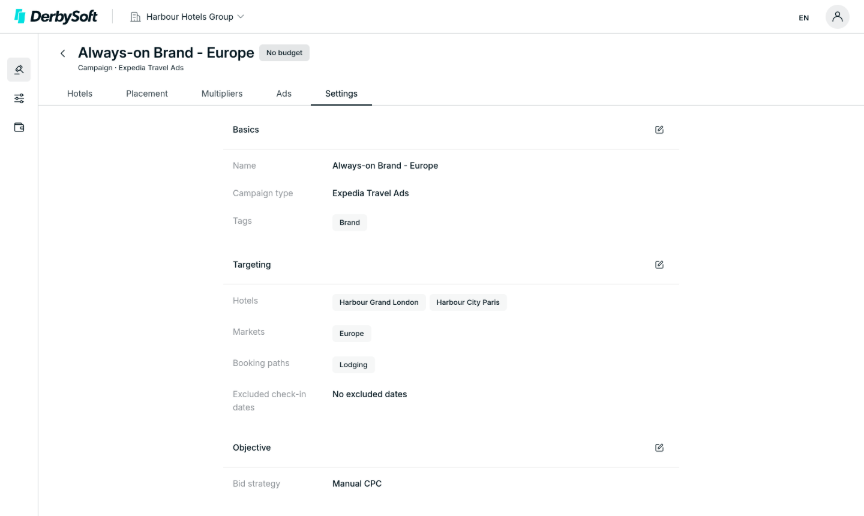
Notes:
• Multipliers: Under Manual CPC and Max Clicks you set them (50%–1000% of the base bid). Under DerbySoft ROAS the AI sets them and they are read-only. ROAS and Max Room Nights have no multipliers.
• Days to arrival and length of stay allow up to three ranges each. Use Edit ranges to change the split points, or Reset to default.
• Channel and campaign structure cannot be changed after creation. Ended and Archived campaigns are read-only.
• In Settings > Budget and Funding, you can move the campaign to another Enabled Fund in the same currency. Spend already incurred stays with the old Fund.
Billing
The Billing page is where you fund your Expedia campaigns. It has three tabs: Funds, Ledger and Billing profiles.
Key terms:
- Fund: a prepaid balance in one currency that pays for campaign spend. Each campaign uses one Fund; one Fund can pay for many campaigns.
- Gross balance: confirmed deposits minus spend already recorded.
- Available balance: Gross balance minus recent spend not yet settled. Campaigns are allowed to spend based on this figure.
- Billing profile: the company details your deposits are invoiced to.
1. Find your Funds
- Click Billing in the left side menu, then the Funds tab.
- The list shows each Fund's Status tags, tags, Gross and Available balance and its campaigns, sorted by lowest Available balance first.
- Filter by currency, status, tags, balance range, campaign or Status tags, and export the list.
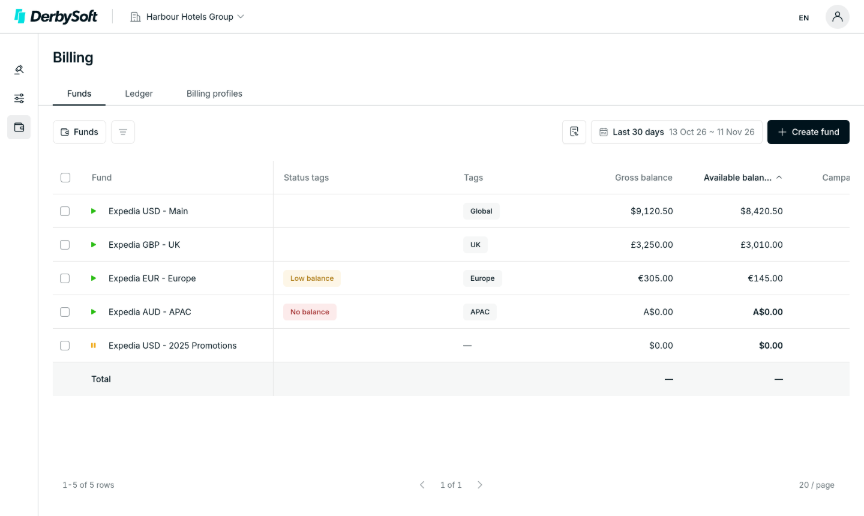
Notes: Status tags warn you about a Fund that needs attention:
• Overspend / No balance: campaigns on this Fund cannot spend. Top up now.
• Low balance: Available balance is below a low-balance threshold set on the Fund's Settings tab.
• Billing profile disabled: deposits cannot be raised until the profile is re-enabled.
2. Create a Fund
- On the Funds tab, click Create fund.
- Enter a name (up to 80 characters, unique), optional tags, and choose a billing profile, channel and currency.
- Click Create fund. The Fund is ready to receive deposits and be assigned to campaigns.
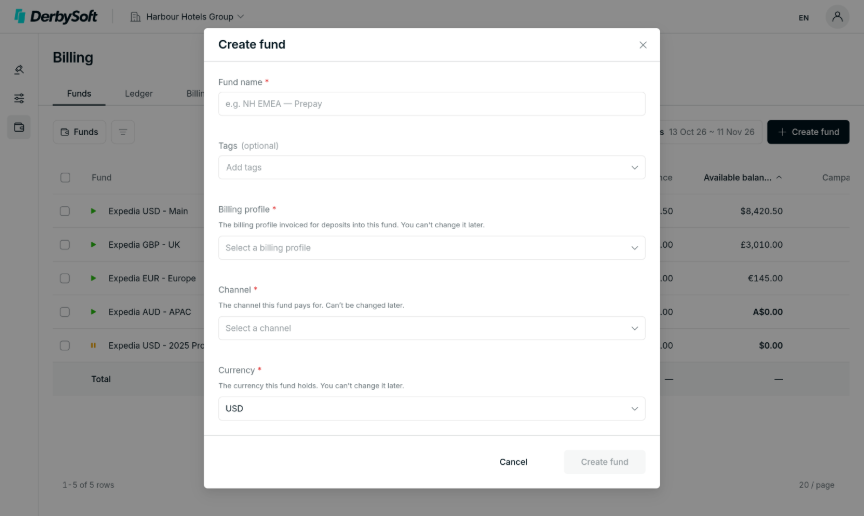
Notes: Billing profile, channel and currency cannot be changed after the Fund is created. If you work in more than one currency, create one Fund per currency. A campaign can only use a Fund in its own currency.
3. Add a deposit (top up)
- Open a Fund and go to its Ledger tab, or go to Billing > Ledger, and click Deposit.
- Enter an amount between 250.00 and 25,000.00. Optionally pick a planned date and add a note.
- Check the Billed to card, which shows the Fund's billing profile, then submit.
- To raise deposits for several Funds at once, use the Raise deposits icon beside Deposit on Billing > Ledger.
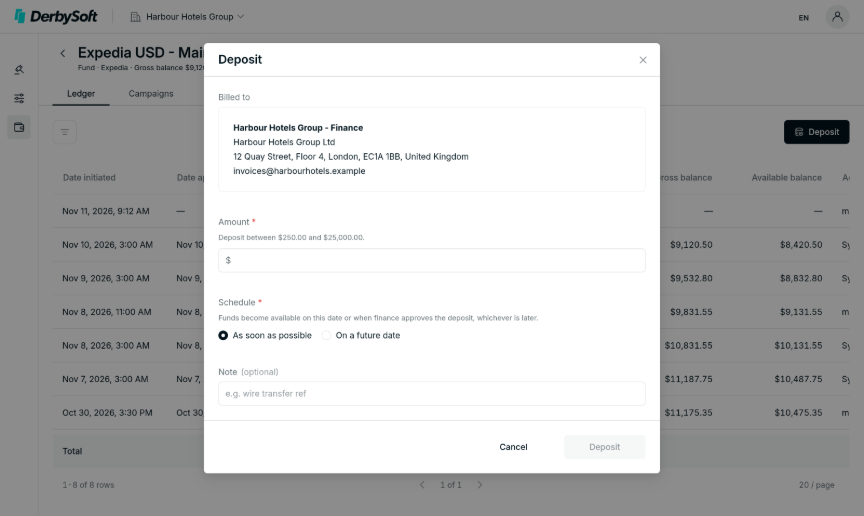
Notes:
• A new deposit shows as Pending until our finance team confirms receipt of payment. It is then Confirmed and added to your balance, or Scheduled if its planned date is in the future.
• Once a deposit is confirmed, campaigns suspended for No funds resume automatically. Campaigns you paused yourself stay paused.
• You can cancel your own deposit while it is still Pending. A cancelled deposit stays in the Ledger as Voided.
4. Transfer money between Funds
- On the Funds list, choose Transfer from the Fund's row actions.
- Select the From and To Funds and enter the amount, then confirm.
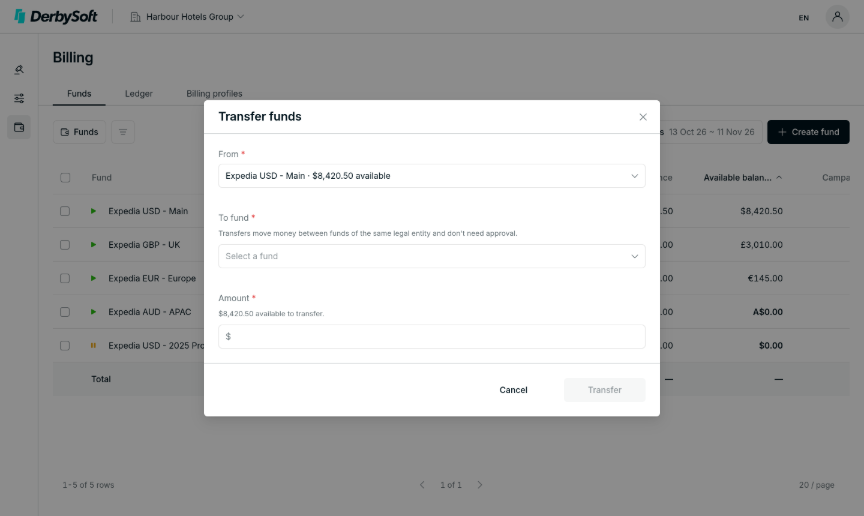
Notes: Both Funds must use the same currency and the same legal entity. You can transfer up to the source Fund's Available balance. A warning appears if the transfer would take the source Fund's Available balance to zero and stop its active campaigns.
5. Fund detail
Click a Fund name to open its detail page. The header shows its Gross and Available balance. It opens on the Ledger tab; the tabs run Ledger, Campaigns, Settings.
Tab | What you can do |
Campaigns | See campaigns paying from this Fund, with their Status tags. Pause or enable a campaign from here. |
Ledger | See every transaction, with the Gross and Available balance after each one. Filter and export. Add a deposit. |
Settings | Edit the Fund name and tags, and set low-balance thresholds to get alerts when the balance falls below them. |
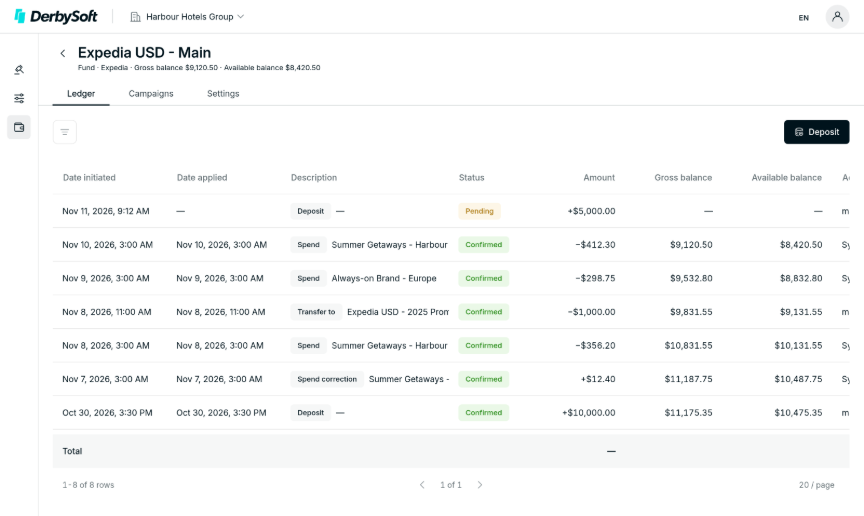
6. Ledger
- Go to Billing > Ledger to see transactions across all your Funds.
- Transaction types include Deposit, Spend, Spend correction, Transfer to / Transfer from, Credit, Debit and Refund.
- Filter by type, status, dates, amount, source, destination, Fund and more. Totals and exports follow your filters.
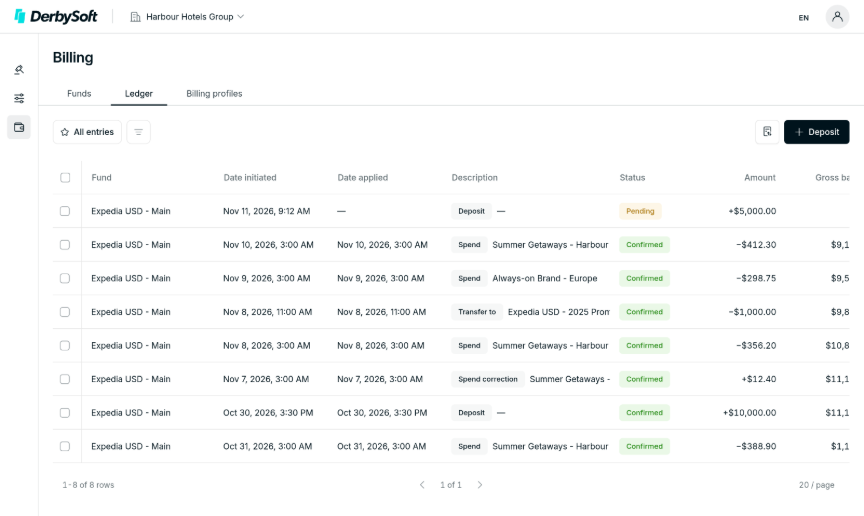
Notes: The Ledger is a permanent record. Entries are never edited or deleted; a correction appears as a new entry that references the original.
7. Pause, enable or archive a Fund
- On the Funds list, change a Fund's status to Paused or Enabled from the row, or select several Funds and use Set status.
- To close a Fund for good, use Archive fund. This is permanent.
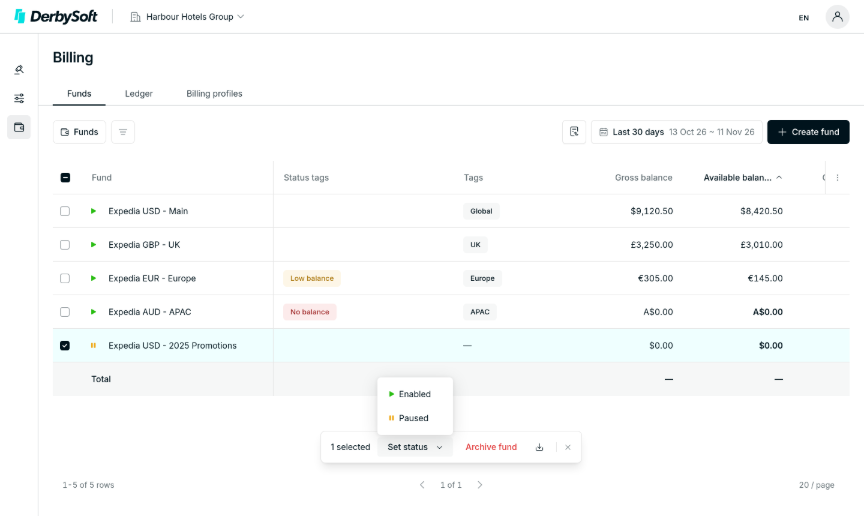
Notes:
• Pausing or archiving a Fund stops all campaigns that use it from spending.
• A Fund can be archived only when it is Paused, its balance is exactly zero, and it has no pending spend or pending deposits. If Archive fund is disabled, hover it to see why.
• Spend that Expedia reports after a pause is still charged to the Fund, even if the balance goes negative.
8. Billing profiles
- Go to Billing > Billing profiles to view the company details your deposits are invoiced to: legal entity, address, tax ID and contact emails.
- Click a card to see the full details.
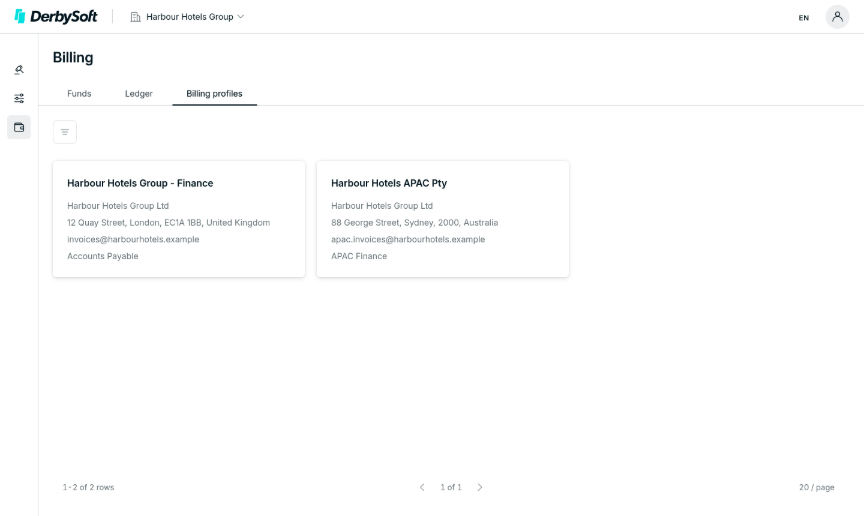
Notes: Billing profiles are read-only here. To add or change one, contact your account manager. At least one Enabled billing profile is needed before your campaigns can deliver.
FAQ
- My campaign shows Active but is not spending. Why? Hover its Status tags. The most common causes are No funds (top up the Fund), No budget (the budget period is used up), or a Fund that is paused or archived.
- What does a campaign need before it can deliver? An Expedia account set up for your hotels, at least one hotel connected, an Enabled billing profile, and an Enabled Fund with enough Available balance. If any of these is missing, the campaign waits and starts automatically once it is fixed.
- I topped up, but my campaign did not restart. Check that the deposit is Confirmed, not Pending. Also check whether the campaign was paused by a user: only campaigns suspended for lack of funds restart automatically.
- Can I change a campaign's Fund? Yes. In the campaign's Settings > Budget and Funding, choose another Enabled Fund in the same currency. Spend from earlier days stays with the old Fund.
- Why is my Available balance lower than my Gross balance? Available balance also subtracts recent spend that System has not yet settled. This protects you from overspending.
- Can I delete a campaign? No. Pause it, then archive it. Archived campaigns can be restored to Paused from the row menu. Drafts can be deleted from the Continue a draft list under Create Campaign.
- Can my balance go negative? Yes, briefly. System may report a small amount of spend after a campaign is paused. It is still charged to the Fund, and campaigns on that Fund stay stopped until it is topped up.
- Who do I contact for help? Your account manager, for access to Expedia Ads, billing profile changes, or deposit questions.
Did you find it helpful? Yes No
Send feedback