[August Release] Saved Views & Smart Filters on Campaign List
Modified on: Fri, 21 Aug, 2026 at 10:39 AM
Today we are excited to share our recent achievements with you.
In this release:
- Saved Views — Customize and save filter combinations, column layouts, and sorting preferences in one click
- 5 Pre-built Views — Default, Performance, Optimization, Underspending, and Overspending for common campaign management scenarios
 What's new
Saved Views on Campaign List
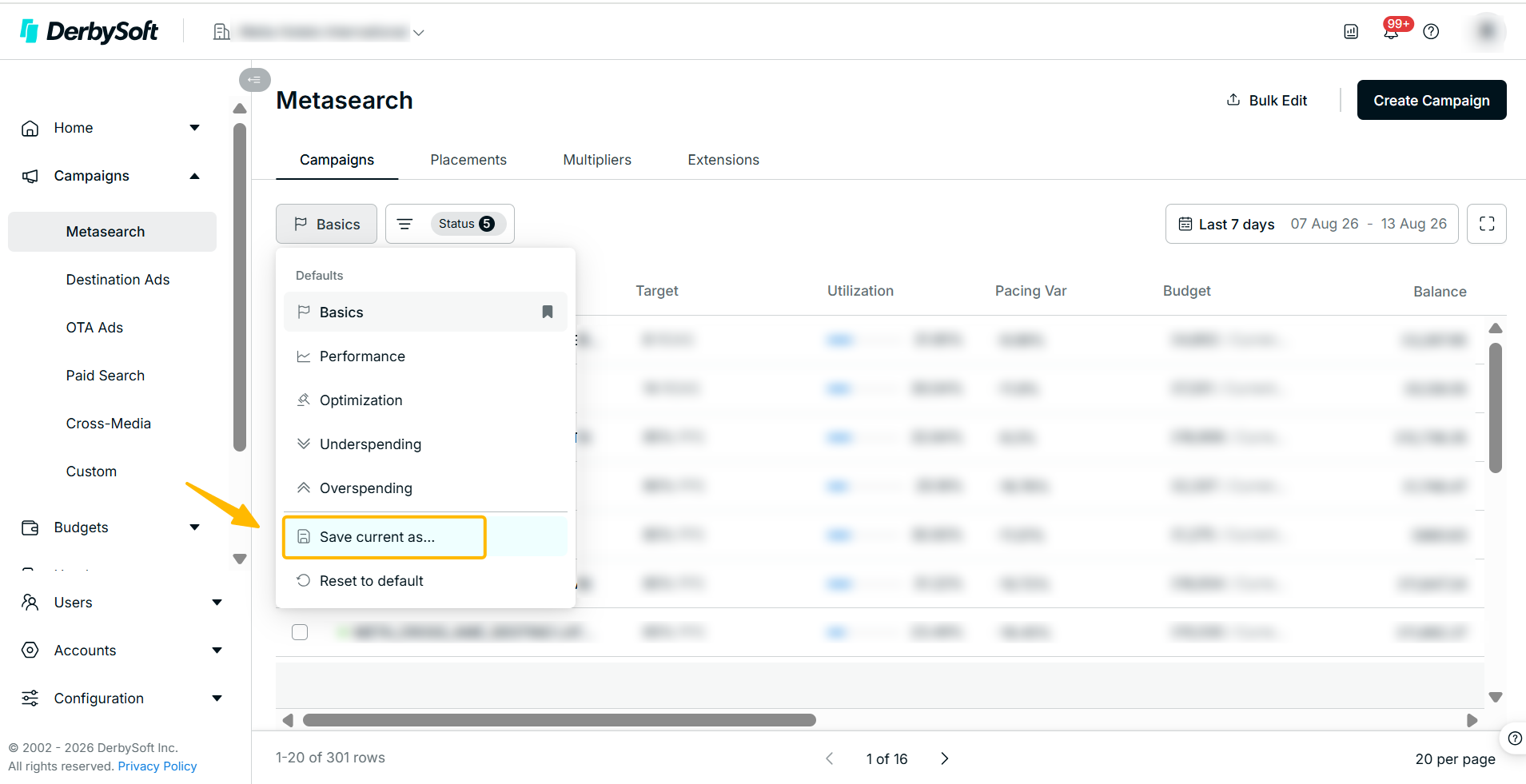
A new Saved Views feature has been introduced on the Campaign List page, enabling users to customize and persist their preferred table configurations. Instead of repeatedly applying the same filters, column selections, and sorting every time, users can now save their setup as a named view and switch between views instantly.
5 Pre-built Views for Common Scenarios
Five default views are available out of the box, each designed around a specific workflow:
View | Purpose |
Default | Status filter applied (excluding "Archived"), sorted by last operation time descending, data bars on Click/Cost/CPC, last 7 days, 20 rows per page |
Performance | All performance metrics visible — Click, Cost, CPC, Booking, Revenue, FPS, VPS, ROAS, Net ROAS — for a full health check |
Optimization | Curated columns for bid and budget management: Bid Strategy, Bid Target, Budget Pacing, alongside key performance metrics |
Underspending | Automatically filters campaigns where Pacing Variance lags behind even pace by 10% or more — quickly locate campaigns that need a boost |
Overspending | Automatically filters campaigns where Pacing Variance exceeds even pace by 10% or more — catch budget risks before they escalate |
How to Create a Custom Views
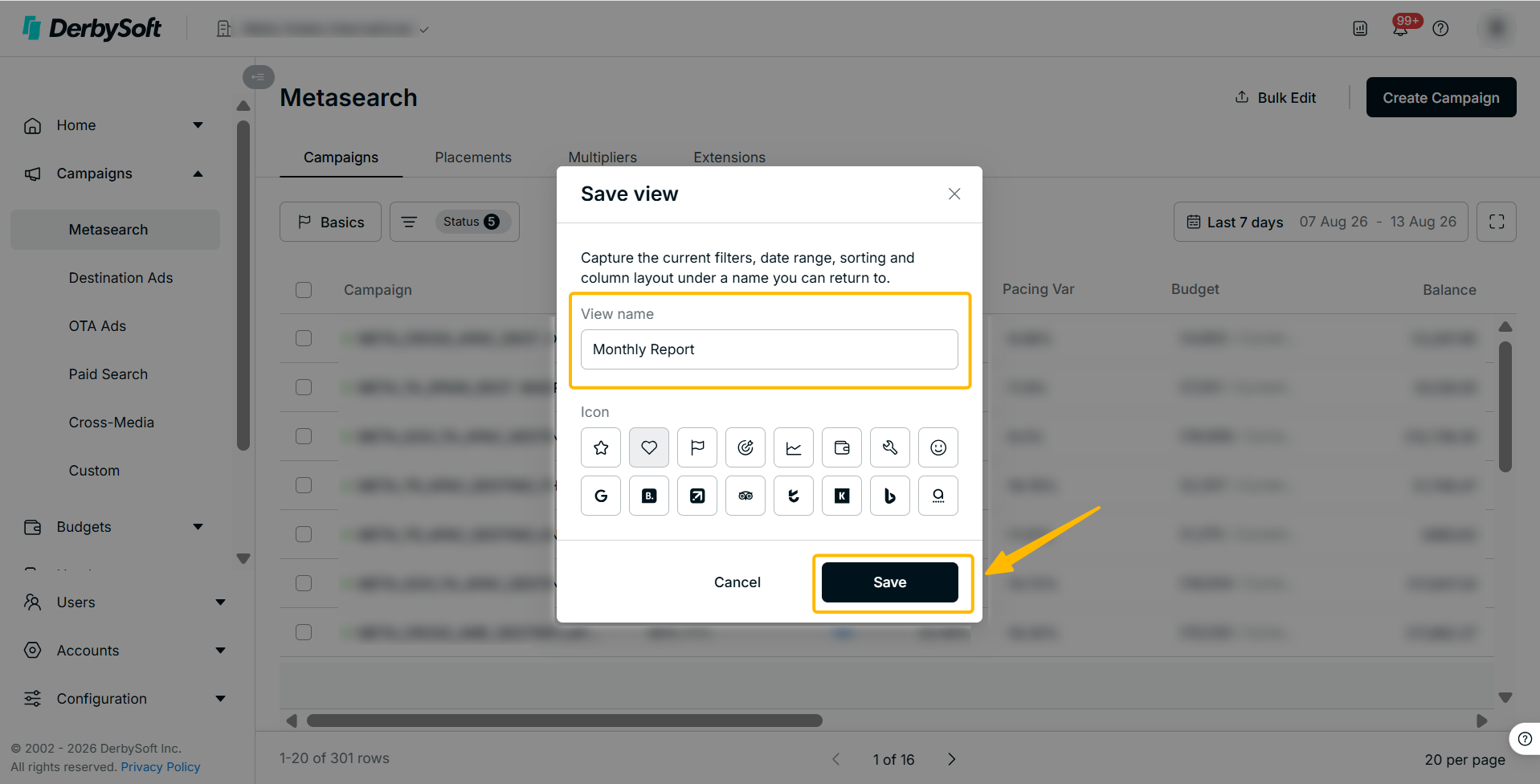
Beyond the pre-built options, users can create up to 5 personalized views:
- Start from any pre-built view or the default layout
- Adjust filters, column selection, column order, sorting, data bars, date range, or page size to match your needs
- Click Save View and enter a name for your view (up to 20 characters; letters, numbers, spaces, hyphens, underscores, parentheses, dots, and "%" allowed)
- Your view is now saved — select it anytime from the view dropdown
How to Manage Saved Views
- Overwrite a view: Make changes on top of an existing saved view, then click Save. The system will detect the overlap and prompt you to overwrite — this works as long as there is a meaningful change from the current saved state.
- Discard temporary changes: If you've made adjustments on top of a saved view but want to go back, simply click the view name again to restore the saved configuration.
- Reset to baseline: Click "Reset to Default" to return to the Default view with all its original settings, removing any additional configurations.
We would love to hear from you!
We are constantly working on improving your experience with Click, creating the best place for your campaigns, and providing you with the necessary tools for easy management.
Want to help us make it better? Tap on the Feedback button in Click to tell us what you'd like to see next.
Did you find it helpful? Yes No
Send feedback